

As online therapy sessions have become much more common in recent years, the team at Academy of Therapy Wisdom want to support you to be the best therapist you can be by offering a series of tips for your online sessions and professional private practice in general. While our focus is on bringing you expert-led online therapy courses and supportive therapist resources, we know that the technical aspects of our work are also important.
In the first part [LINK], our head of video gave you visual video tips to foster more connection with your clients. In this second part, he’ll go through a few audio tips to make sure your clients can hear you clearly without background noise, as well as how to share music from your computer so your client can hear it.
How to Make Sure Your Client Can Hear You Loud and Clear
Your computer’s built-in mic might work great. If none of your clients ever complain about not hearing you clearly, then there probably isn’t an issue. However, if they ever complain that your voice isn’t coming through loud and clear, here are a few things to try.
The first and simplest thing is to adjust your input volume in Zoom. Click on the little “^” icon next to the Mute (or Unmute) button, and then click “Audio Settings…”
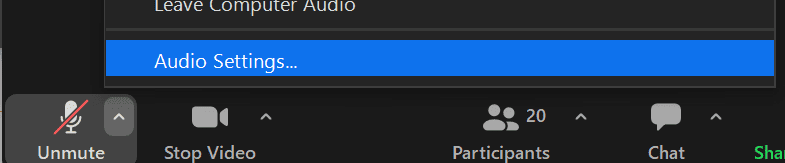
In the Audio Settings window, you can adjust the microphone volume. If people are having trouble hearing you, then I suggest unchecking the box that says “Automatically adjust microphone volume,” and then turning the mic volume all the way up.

There are three other factors that affect sound quality: the quality of the mic, the distance between the mic and the source of the sound (your mouth), and the amount of background noise. We’ll deal with background noise in the next section.
There are lots of fancy mics that you can buy, but the cheapest and easiest way to get better sound quality is to move the microphone closer to your mouth by wearing a pair of earbuds with a mic, like you would use with a cell phone.
Regardless of whether you’re using earbuds with a built-in microphone, or a fancy USB mic that sits on your desk, you’ll need to make sure Zoom is using the correct microphone. To do this, you’ll click the little “^” icon next to the Mute button on the bottom left of your Zoom window
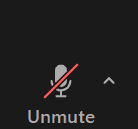
And then select the correct microphone from the menu that pops up.
How to Deal with Background Noise on a Zoom Meeting
Zoom’s noise cancellation is very good, but if it’s not getting rid of all of the background noise that you have in your space, here’s how to find and adjust the noise cancellation settings.
Once again, Click on the little “^” icon next to the Mute/Unmute button, and then click “Audio Settings…”
Then make sure Zoom Optimized Audio is selected, and then select the appropriate Background Noise Suppression setting.

What if there’s TOO MUCH noise cancellation?
Have you ever tried to ring a singing bowl or play an instrument, and the person on the other end of Zoom doesn’t hear it? That’s because Zoom’s background noise suppression is good at identifying what is and isn’t a human voice, and eliminating all other sounds.
If you want to use a physical object to make noise and you want your client to hear it, you can check the “Original sound for musicians” option in the Audio Profile section of the Audio Settings Window. This turns off the noise suppression. It’s a good idea to change this setting back when you’re done, so that unwanted background noises don’t interfere with being understood in the future.
How to Share Music in your Zoom Session
If you ever want to play music from your computer and have your client hear it, Zoom lets you do that, but the option is a little bit hidden.
Click the Share Screen button.

In the window that pops up, click on the “Advanced” tab at the top.
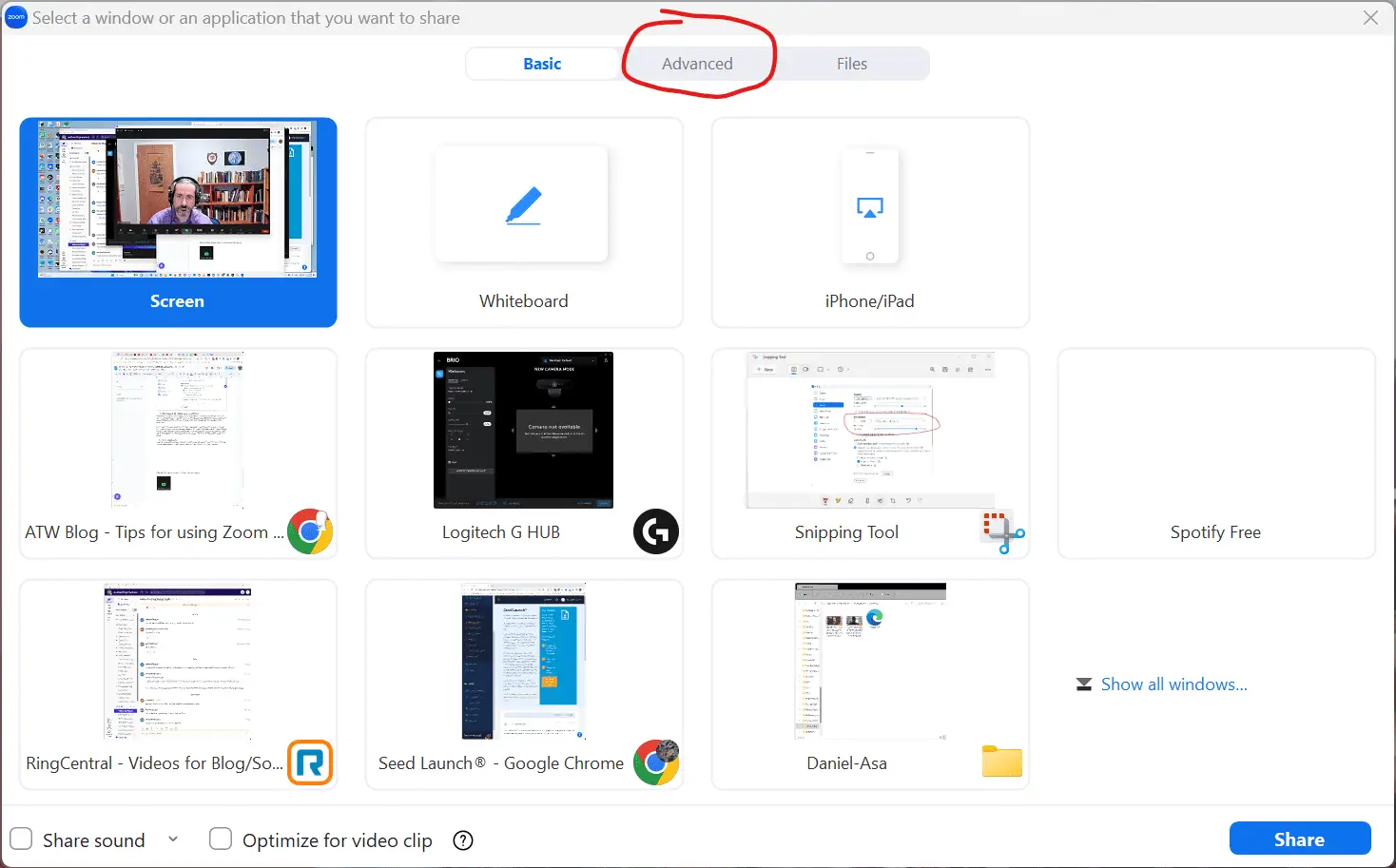
Then click on “Computer Audio,” and then “Share” in the lower right.

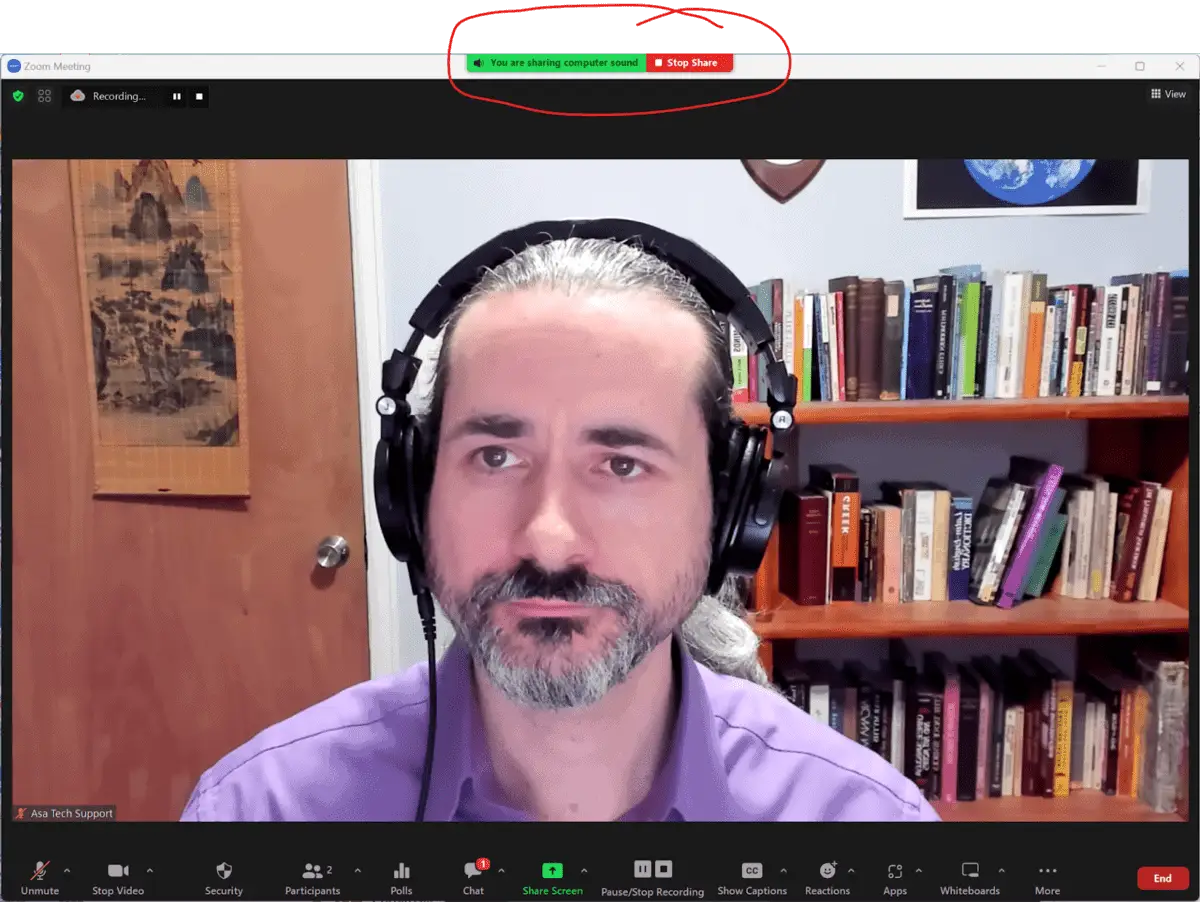
You won’t be sharing your screen, but any audio you play on your computer will be heard by the person on the other end. If you want to play some relaxing music, you can do that!
Just make sure to turn on Do Not Disturb so that the client doesn’t hear any notification noises that your computer might make during their relaxation time. And be sure to click the “Stop Share” button when you’re done.
There are plenty more things I’ve learned from running Zoom for online therapy trainings for seven years, but these are the aspects that make the biggest difference in getting the technology out of the way so that you can connect with your clients as human beings.
I hope these tips help you deal with any tech frustrations you’ve had with using Zoom for online therapy sessions, so you can stop worrying about the technology and focus on doing great therapy.
If you want to expand your knowledge of how to do great therapy, you can check out our library of online trainings for therapists.

JOIN a FREE Training with Dr. Tori Olds
Introduction to Deliberate Practice in Psychotherapy
In this video series, you will learn:
The essential problem with most other therapy training programs.
Six myths about becoming a more effective therapist.
What Deliberate Practice is and why it is so important
The five steps on the roadmap for clinical excellence